customizing the handout master\nwhich steps allow a user to change the column layout in the handout…
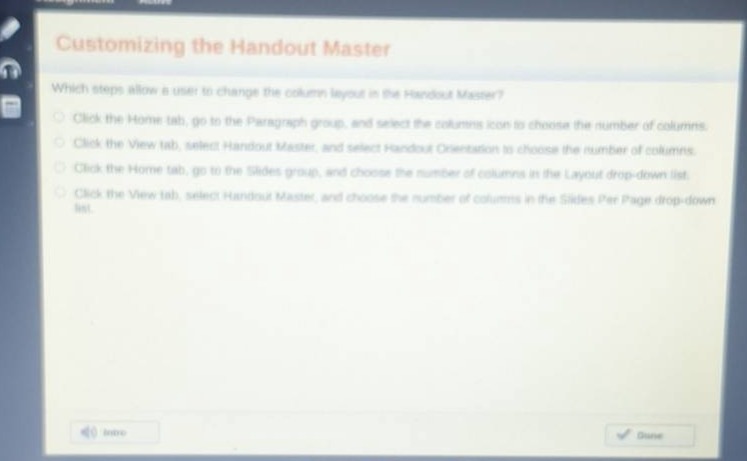
customizing the handout master\nwhich steps allow a user to change the column layout in the handout master?\nclick the home tab, go to the paragraph group, and select the columns icon to choose the number of columns.\nclick the view tab, select handout master, and select handout orientation to choose the number of columns.\nclick the home tab, go to the slides group, and choose the number of columns in the layout drop - down list.\nclick the view tab, select handout master, and choose the number of columns in the slides per page drop - down list.
Answer
Brief Explanations:
To change the column layout in the Handout Master, one needs to access the Handout Master view. The correct steps involve clicking the View tab, selecting Handout Master, and then choosing the number of columns in the Slides Per Page drop - down list. The other options either access the wrong tabs or wrong groups for this specific task.
Answer:
Click the View tab, select Handout Master, and choose the number of columns in the Slides Per Page drop - down list.