QUESTION IMAGE
Question
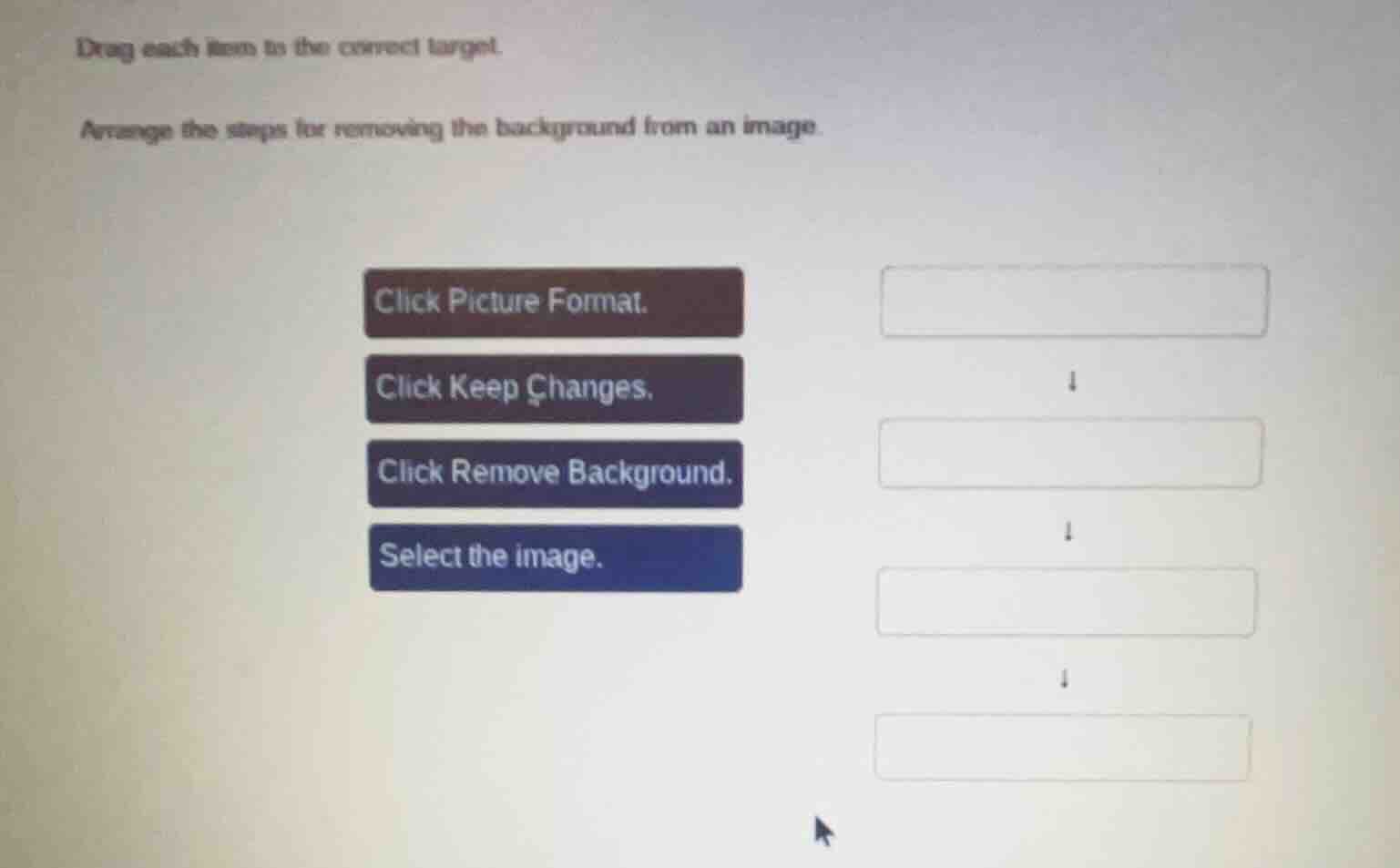
drag each item to the correct target.
arrange the steps for removing the background from an image.
click picture format.
click keep changes.
click remove background.
select the image.
Brief Explanations
To remove the background from an image, the first step is to select the image. Then, access the Picture Format tab. Next, use the Remove Background option. Finally, confirm the changes by clicking Keep Changes. So the order is: Select the image → Click Picture Format → Click Remove Background → Click Keep Changes.

Snap & solve any problem in the app
Get step-by-step solutions on Sovi AI
Photo-based solutions with guided steps
Explore more problems and detailed explanations
- Select the image.
- Click Picture Format.
- Click Remove Background.
- Click Keep Changes.