QUESTION IMAGE
Question
scenario
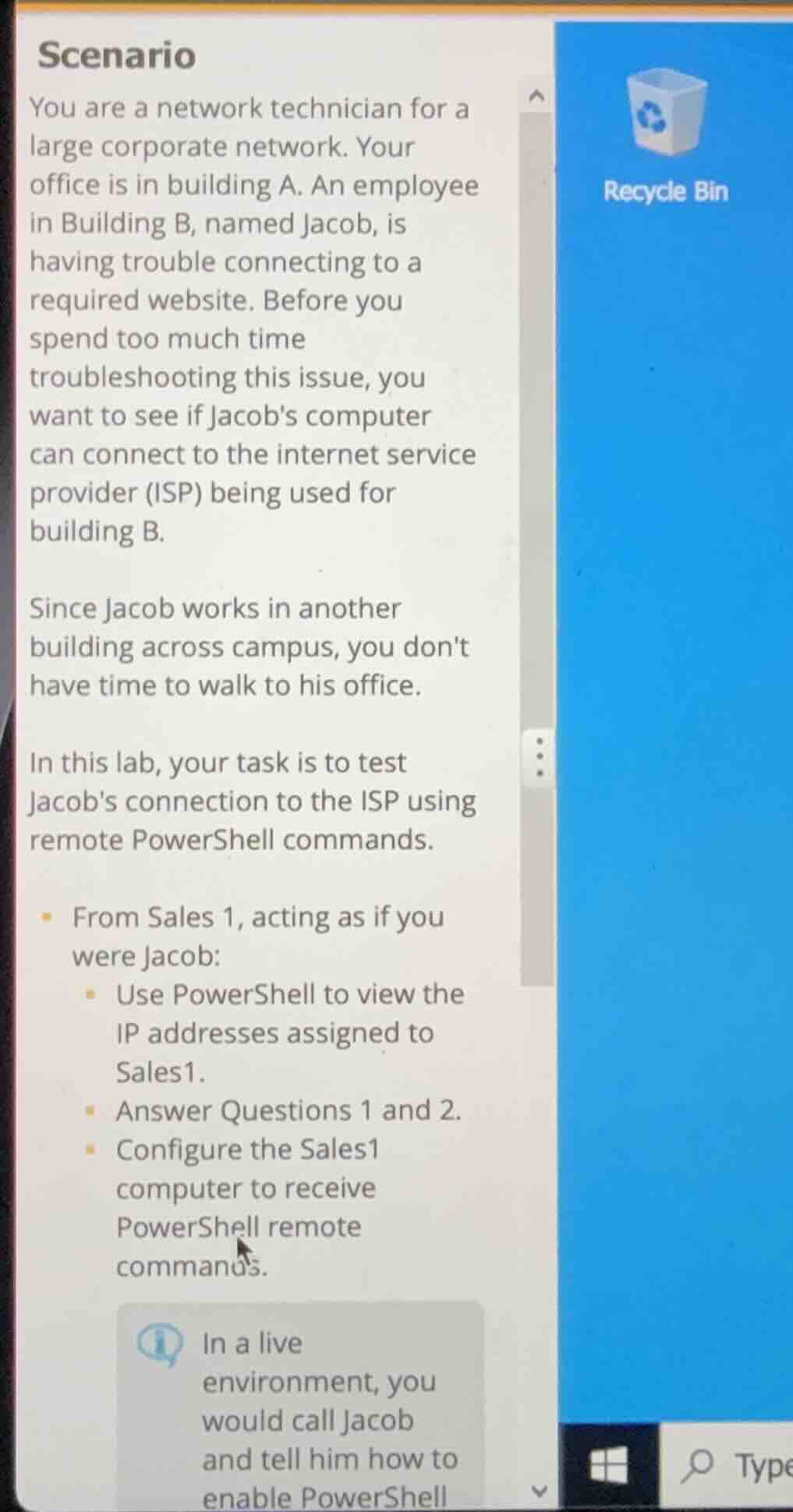
you are a network technician for a
large corporate network. your
office is in building a. an employee
in building b, named jacob, is
having trouble connecting to a
required website. before you
spend too much time
troubleshooting this issue, you
want to see if jacobs computer
can connect to the internet service
provider (isp) being used for
building b.
since jacob works in another
building across campus, you dont
have time to walk to his office.
in this lab, your task is to test
jacobs connection to the isp using
remote powershell commands.
- from sales 1, acting as if you
were jacob:
- use powershell to view the
ip addresses assigned to
sales1.
- answer questions 1 and 2.
- configure the sales1
computer to receive
powershell remote
commands.
ℹ️ in a live
environment, you
would call jacob
and tell him how to
enable powershell
- To view IP addresses on Sales1 (as Jacob): Use the PowerShell command to list network adapter IP configurations.
- To enable remote PowerShell on Sales1: Run the required PowerShell command to configure WinRM for remote access, which allows external PowerShell connections.
- To test Jacob's ISP connection remotely (once access is enabled): Use a PowerShell command to send a test packet to the ISP's gateway or a known ISP host.

Snap & solve any problem in the app
Get step-by-step solutions on Sovi AI
Photo-based solutions with guided steps
Explore more problems and detailed explanations
- To view Sales1's IP addresses (as Jacob):
Open PowerShell and run:Get-NetIPAddress -AddressFamily IPv4
- To configure Sales1 for remote PowerShell:
Open PowerShell as Administrator and run:Enable-PSRemoting -Force
- To test the ISP connection remotely (from your workstation):
Run:Invoke-Command -ComputerName Sales1 -ScriptBlock {Test-Connection -TargetName <ISP_Gateway_IP_or_Host> -Count 4}
(Replace <ISP_Gateway_IP_or_Host> with the actual ISP gateway address or a host provided by the ISP)