QUESTION IMAGE
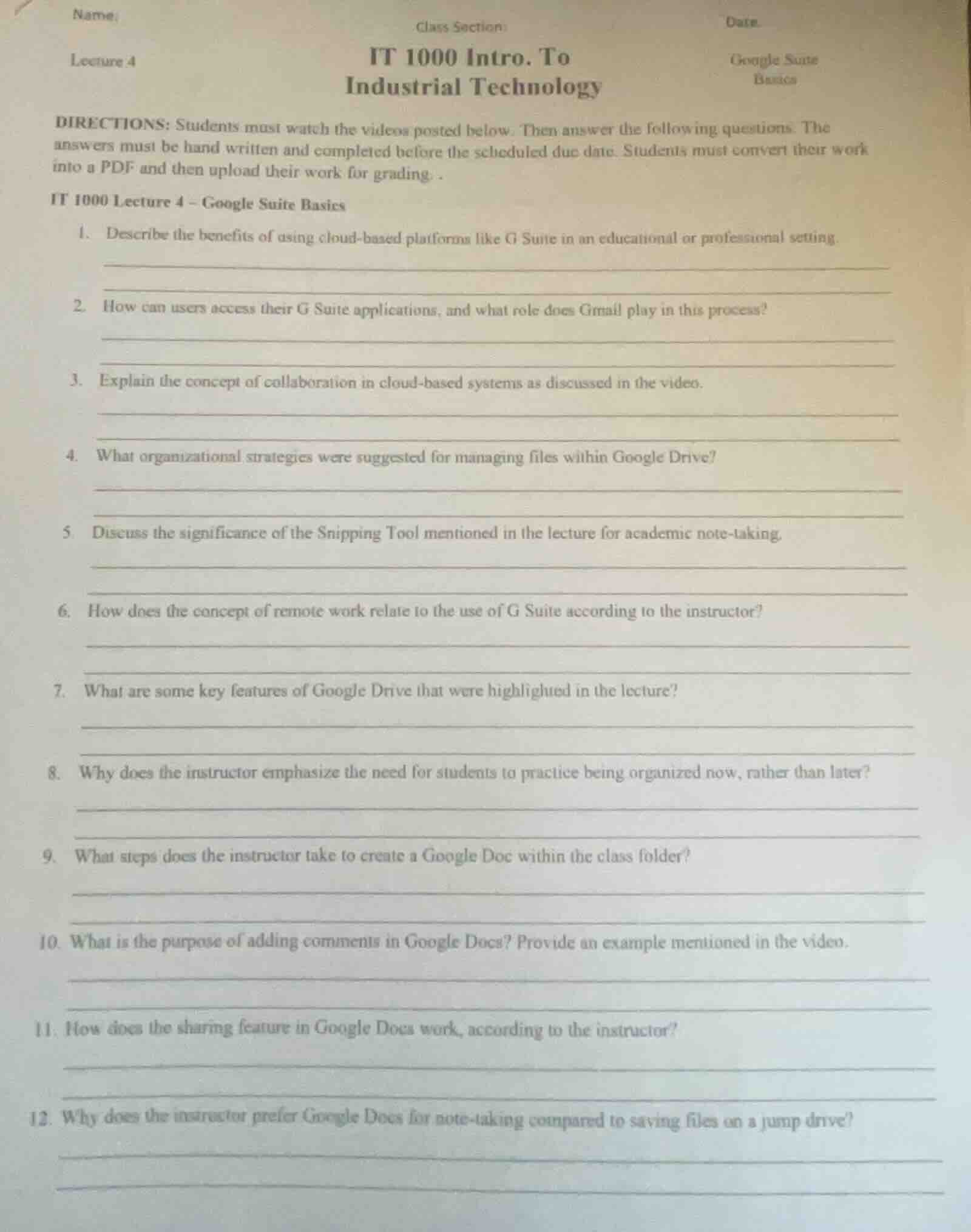
Question
name:
class section:
date.
lecture 4
it 1000 intro. to
industrial technology
google suite
basics
directions: students must watch the videos posted below. then answer the following questions. the answers must be hand written and completed before the scheduled due date. students must convert their work into a pdf and then upload their work for grading..
it 1000 lecture 4 - google suite basics
- describe the benefits of using cloud - based platforms like g suite in an educational or professional setting.
- how can users access their g suite applications, and what role does gmail play in this process?
- explain the concept of collaboration in cloud - based systems as discussed in the video.
- what organizational strategies were suggested for managing files within google drive?
- discuss the significance of the snipping tool mentioned in the lecture for academic note - taking.
- how does the concept of remote work relate to the use of g suite according to the instructor?
- what are some key features of google drive that were highlighted in the lecture?
- why does the instructor emphasize the need for students to practice being organized now, rather than later?
- what steps does the instructor take to create a google doc within the class folder?
- what is the purpose of adding comments in google docs? provide an example mentioned in the video.
- how does the sharing feature in google docs work, according to the instructor?
- why does the instructor prefer google docs for note - taking compared to saving files on a jump drive?
To answer these questions, we'll address each one based on typical knowledge about Google Suite (G Suite) and educational/professional technology use. Since the original video isn't provided, we'll use general information about G Suite (now Google Workspace) for these explanations.
Question 1: Benefits of Cloud - Based Platforms (G Suite) in Educational/Professional Settings
- Accessibility: Users can access files, documents, and apps from any device with an internet connection (laptops, tablets, phones), enabling remote work/learning.
- Collaboration: Real - time editing (e.g., in Google Docs) allows multiple users to work on a document simultaneously. Commenting and suggesting features facilitate feedback.
- Storage & Backup: Google Drive provides cloud storage, so files are backed up and not lost if a device fails. Storage can be shared (e.g., in team drives).
- Integration: G Suite apps (Docs, Sheets, Slides, Gmail, Calendar) integrate seamlessly. For example, Gmail can be used to share Drive files, and Calendar syncs with other apps.
- Cost - Efficiency: Many educational institutions get free or low - cost access, reducing the need for on - premise servers or software licenses.
- Version Control: Google Docs automatically saves versions, so users can track changes or revert to previous versions.
- Accessing G Suite Apps: Users go to
https://workspace.google.com/(ordrive.google.com,docs.google.com, etc.) and sign in with their G Suite (Google Workspace) account (usually an email address, e.g.,@school.eduor@company.com). Mobile apps (e.g., Google Docs, Gmail, Drive) can also be used after signing in. - Gmail’s Role: The Gmail account is the user’s G Suite identity. It’s the primary sign - in (the email address is the username). Gmail integrates with other apps: share Drive files via Gmail, get notifications about shared documents, or use Gmail to invite collaborators to Docs/Sheets. It’s the “hub” for communication and app access.
- Real - Time Editing: In Google Docs/Sheets/Slides, multiple users can edit a file at the same time. Changes are visible instantly (e.g., a team writing a report or students working on a group project).
- Sharing & Permissions: Files can be shared with specific people (via email) or groups. Permissions (edit, comment, view - only) control access. For example, a teacher shares a Doc with “edit” access for students to collaborate, or “comment” for peer feedback.
- Suggestions/Comments: Users can suggest edits (which the owner can accept/reject) or add comments (e.g., “Check this data source” in a Sheet). This streamlines feedback in projects or assignments.
- Version History: Track who made changes and when, and revert to old versions if needed (useful for auditing collaboration).

Snap & solve any problem in the app
Get step-by-step solutions on Sovi AI
Photo-based solutions with guided steps
Explore more problems and detailed explanations
Benefits include: 1) Accessibility (any device with internet); 2) Real - time collaboration (multiple users edit/suggest/comment on docs); 3) Cloud storage (backup, shared storage); 4) Seamless app integration (Docs, Gmail, Calendar work together); 5) Cost - efficiency (free/low - cost for education/profession); 6) Automatic version control (track/revert document changes).