QUESTION IMAGE
Question
describing how to access the create new building block dialog box
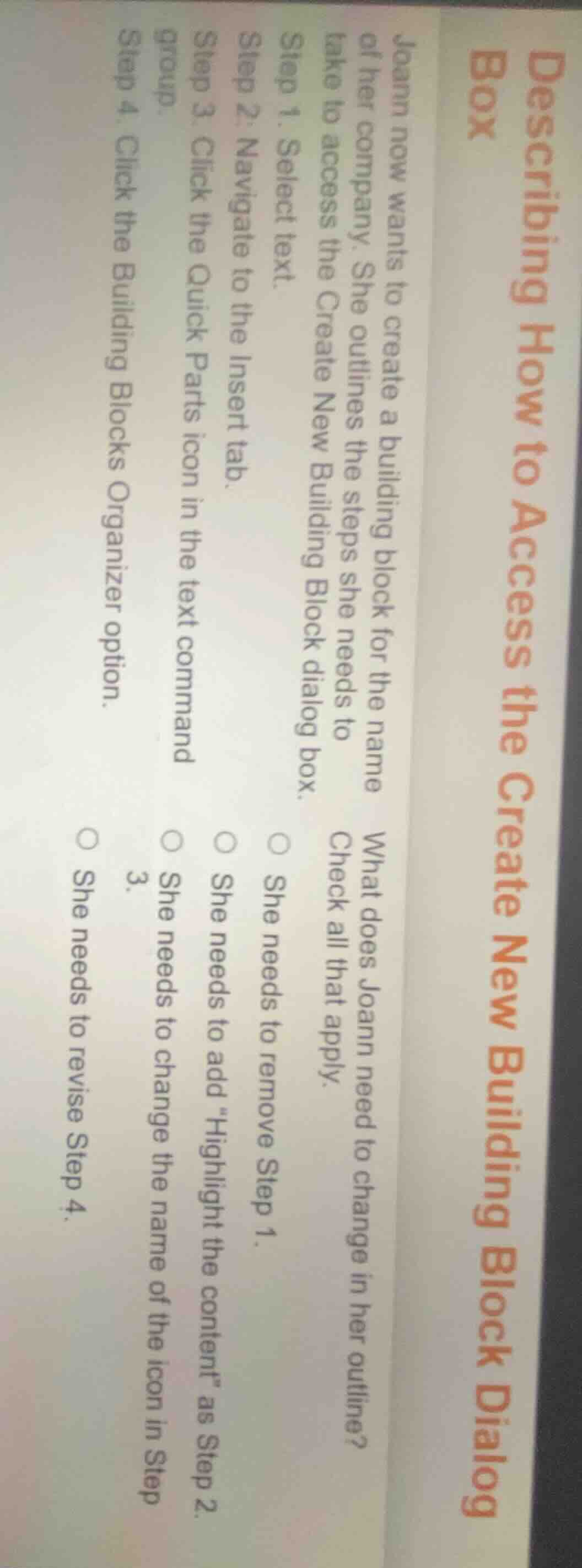
joann now wants to create a building block for the name of her company. she outlines the steps she needs to take to access the create new building block dialog box.
step 1. select text.
step 2: navigate to the insert tab.
step 3. click the quick parts icon in the text command group.
step 4. click the building blocks organizer option.
what does joann need to change in her outline?
check all that apply.
○ she needs to remove step 1.
○ she needs to add \highlight the content\ as step 2.
○ she needs to change the name of the icon in step 3.
3.
○ she needs to revise step 4.
To access the Create New Building Block dialog box, the correct workflow is: first select the text you want to turn into a building block, then go to the Insert tab, click the Quick Parts icon, and choose "Save Selection to Quick Part Gallery" (not Building Blocks Organizer). Step 1 is correct, but Step 4 is wrong (Building Blocks Organizer does not open the Create New dialog). Step 2 does not need highlighting added, and Step 3's icon name is correct. Only Step 4 needs revision.

Snap & solve any problem in the app
Get step-by-step solutions on Sovi AI
Photo-based solutions with guided steps
Explore more problems and detailed explanations
She needs to revise Step 4.