QUESTION IMAGE
Question
how to use inquizitive
- what is inquizitive?
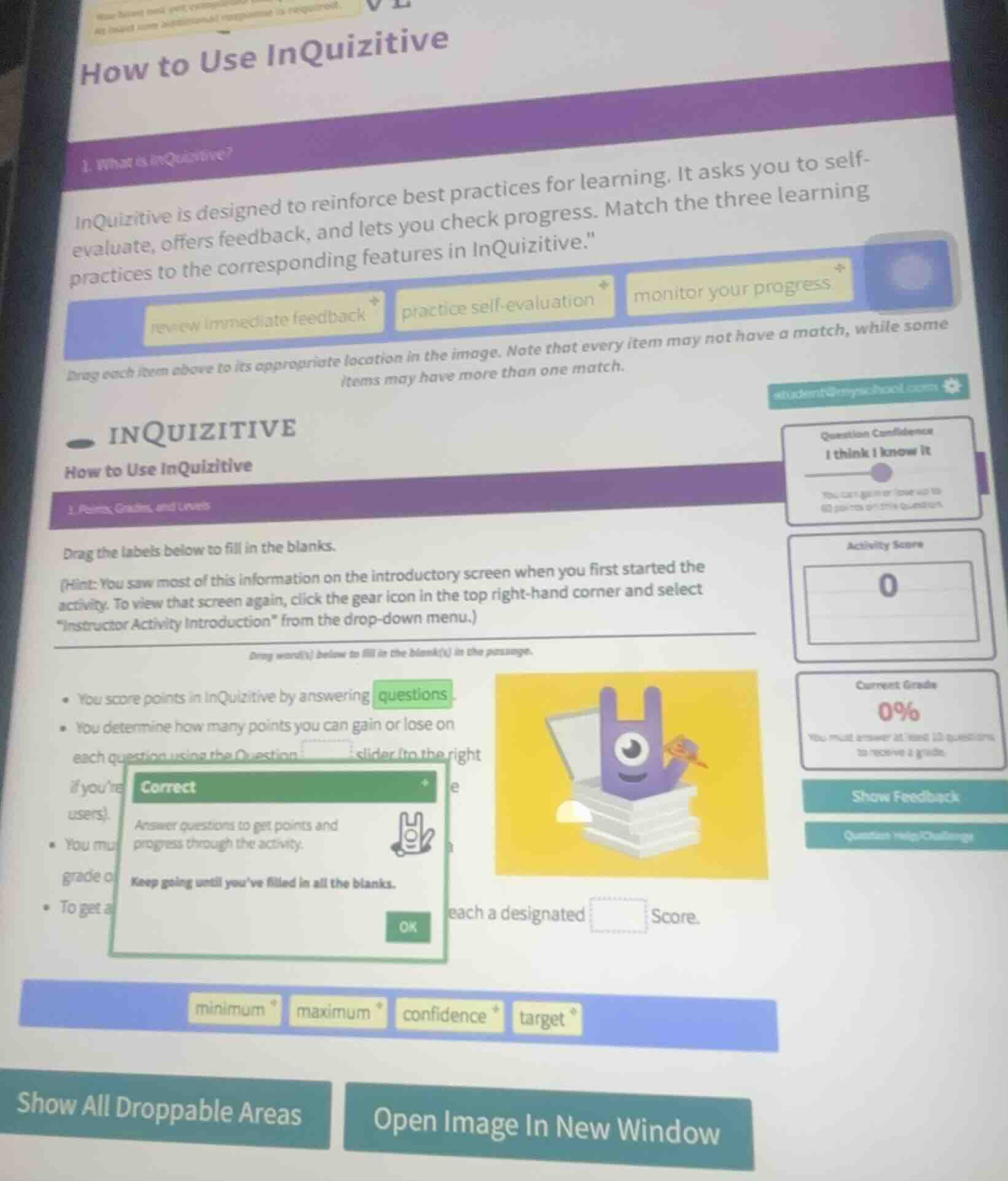
inquizitive is designed to reinforce best practices for learning. it asks you to self - evaluate, offers feedback, and lets you check progress. match the three learning practices to the corresponding features in inquizitive.
review immediate feedback practice self - evaluation monitor your progress
drag each item above to its appropriate location in the image. note that every item may not have a match, while some items may have more than one match.
inquizitive
how to use inquizitive
- points, grades, and levels
drag the labels below to fill in the blanks.
(hint: you saw most of this information on the introductory screen when you first started the activity. to view that screen again, click the gear icon in the top right - hand corner and select “instructor activity introduction” from the drop - down menu.)
drag word(s) below to fill in the blank(s) in the passage.
- you score points in inquizitive by answering questions.
- you determine how many points you can gain or lose on each question using the question slider (to the right if you’re
- you mu grade o
- to get a each a designated score.
minimum maximum confidence target
show all droppable areas open image in new window
- For the top matching task:
- "practice self-evaluation" matches the Question Confidence slider (since you assess your own knowledge level here).
- "review immediate feedback" matches the Show Feedback button (this lets you access instant feedback on answers).
- "monitor your progress" matches the Activity Score and Current Grade displays (these track your ongoing performance).
- For the fill-in-the-blank task:
- The Question Confidence slider lets you set how many points you gain/lose, so the first blank is "confidence".
- To get a grade, you need to reach a designated required score threshold, so the second blank is "minimum".

Snap & solve any problem in the app
Get step-by-step solutions on Sovi AI
Photo-based solutions with guided steps
Explore more problems and detailed explanations
- Matching task:
- practice self-evaluation → Question Confidence slider
- review immediate feedback → Show Feedback button
- monitor your progress → Activity Score / Current Grade
- Fill-in-the-blank task:
- You determine how many points you can gain or lose on each question using the Question confidence slider.
- To get a grade, you must reach a designated minimum Score.